
What you will Learn:
- Need for Virtualization
- Install Oracle VM Virtual Box
- Download Ubuntu desktop image
- Install Ubuntu image on oracle virtual box
Need for Virtualization
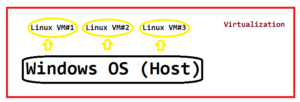
Most of us work on Windows OS. Using virtualization technique, you can install an image of Linux OS on your windows host machine. So your windows machine will become the host machine & we can install a guest linux OS on top of that. This way, you can install any necessary software (for DevOps) on linux virtual machine. You don’t have to disturb the setup on your host windows machine.
We would be installing Ubuntu OS image on our windows host machine. Ubuntu is a flavour of Linux. So let us start.
Install Oracle VM Virtual Box
We need to first install the Oracle VM Virtual box. Once we are done with this, we can then setup Ubuntu VM.
So, below are the steps to install Oracle Virtual Box.
Go to https://www.virtualbox.org/wiki/Downloads
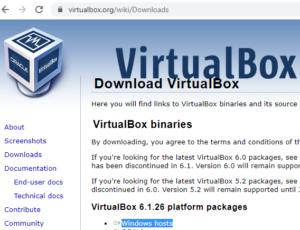
Download the Windows hosts package

Just install the above package

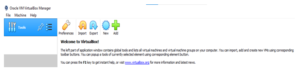
After installation, click the desktop icon ‘Oracle VM VirtualBox’, below window would come up
Download Ubuntu desktop image
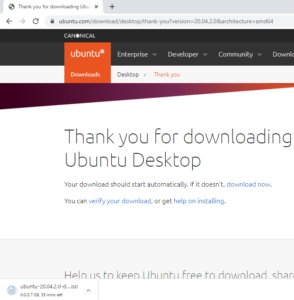
Next, we will download ‘Ubuntu Desktop’ image from https://ubuntu.com/download#download
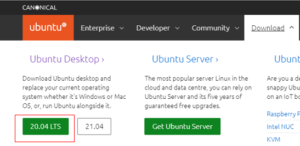
Click 20.94 LTS to download image

Install Ubuntu image
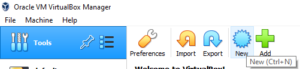
Once the image gets downloaded, click ‘New’ icon that you see on Oracle virtual box
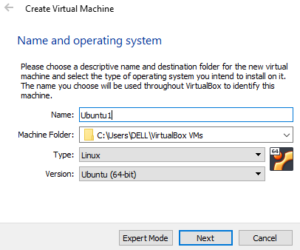
Provide name of your new Ubuntu machine (example Ubuntu1). The type automatically changes to Linux and Version changes to Ubuntu (64 bit)
Next
Memory size: 1024 MB
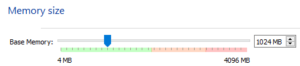
Next, Keep default as shown below
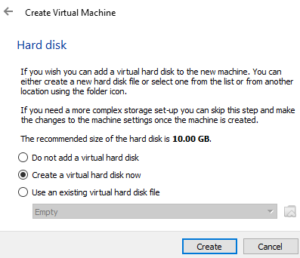
Create
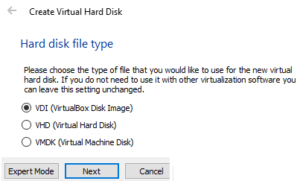
Next
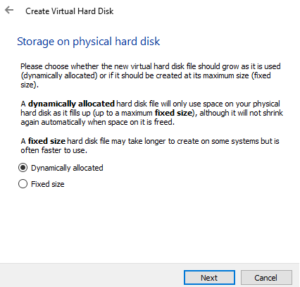
Next
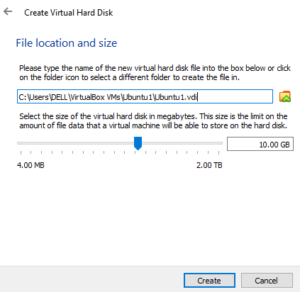
Create
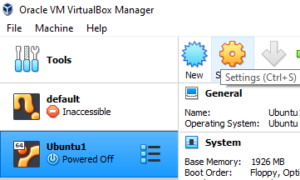
Select Ubuntu1 on the left hand side and click Settings

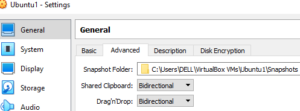
In the ‘Advanced’ tab, select ‘Bidirectional’ as the 2 dropdown values. This will allow to share files between host machine (windows) and Ubuntu VM and vice-versa
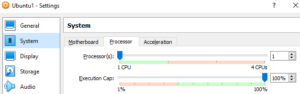
System > Processor tab, enter number of processors as 1
Storage > Select Empty > Click disc icon > Click ‘Choose a disk file’
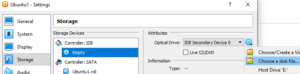
Select the Ubuntu iso file you downloaded
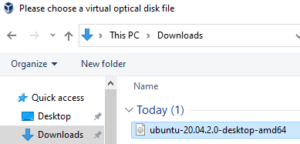
You would now see the iso image name
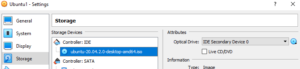
Click Ok
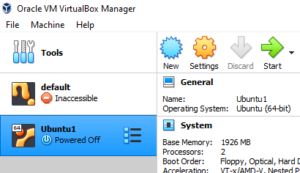
Click Start  to start the Ubuntu installation
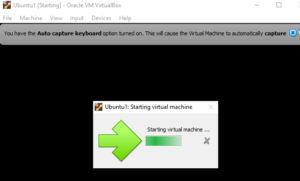
Click  to close the warnings that you see in the above screen

Similarly close other warnings
Finish all the remaining steps by setting up your user id, password etc (pretty straightforward). Once the steps are completed, you would see Ubuntu VM successfully installed
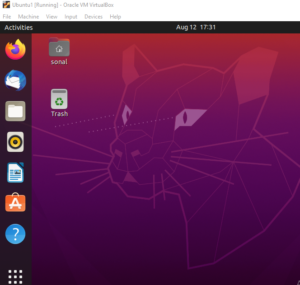
Click  to show applications
Type ‘terminal’ and hit ‘Enter’, you would enter the terminal app, see below
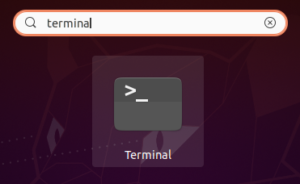
Double click ‘Terminal’. A terminal session would open, see below
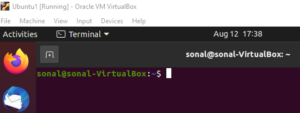
We can now execute any linux commands
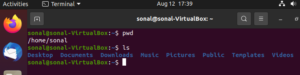
So this is how we install an Ubuntu VM on windows host!
We would next see how to connect to Ubuntu virtual machine from our windows machine using SSH plus we will also study about important Linux concepts.
Thank you for reading!